Calibration
Context
Compositor or Shader Editor > Sidebar > MacBlend
Calibration fits a 3-by-3 RGB matrix between a sampled source and either a built-in chart reference or another sampled image.
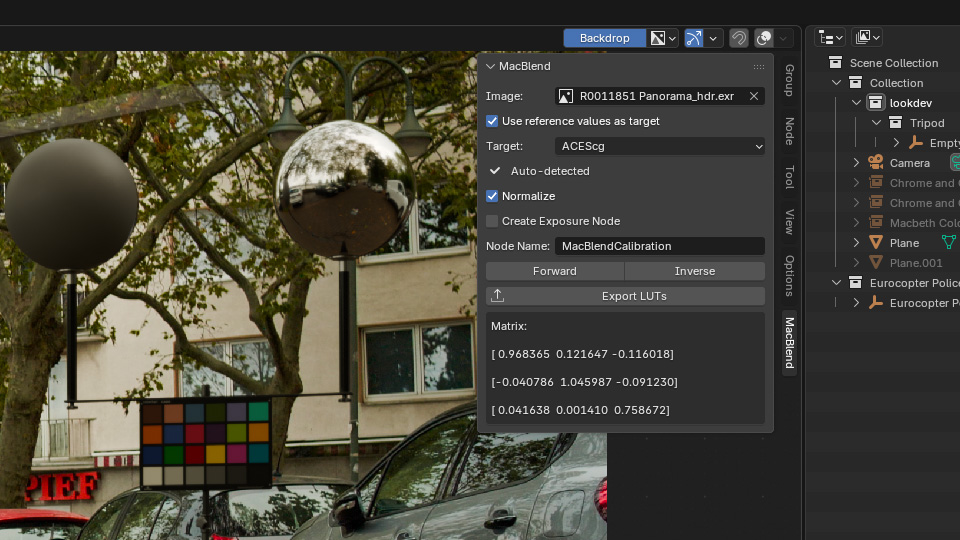
Reference-based calibration with an automatically detected target gamut.
Settings
Image : The sampled source. Only images containing all 24 patch values are available.
Use reference values as target : Uses the built-in chart measurements. When disabled, Target selects a second sampled image.
Target : Selects the linear gamut of the built-in target values. MacBlend initializes it from Blender’s File Color Space when the source is selected.
✅ Auto-detected means the target matches the file color space.
Target overridden means another target was selected manually.
❌ Couldn’t detect target gamut from scene means MacBlend could not find a match and selected Linear Rec. 709 as a fallback.
Normalize : Removes brightness changes from the matrix calculation so the matrix captures only color shifts.
Create Exposure Node : Creates a separate brightness adjustment node that matches the target brightness.
Node Name
: Base name for generated Forward and Inverse matrix nodes. The default is MacBlendCalibration.
Important
The Target setting’s gamut should match the Color Space setting of your file. A gamut is the range of colors that a color space can represent.
Operators
Forward : Creates nodes that transform the sampled source toward the selected target.
Inverse : Creates nodes that transform the selected target toward the sampled source.
Matrix Result
The fitted matrix appears in the panel after a successful solve. A valid matrix does not guarantee a useful calibration; poor illumination, clipping, an incorrect input transform, or reversed chart orientation can all bias the result.
See Method and Limitations for the calculation and capture assumptions.